
Technology
Best Software To Boost FPS In Games

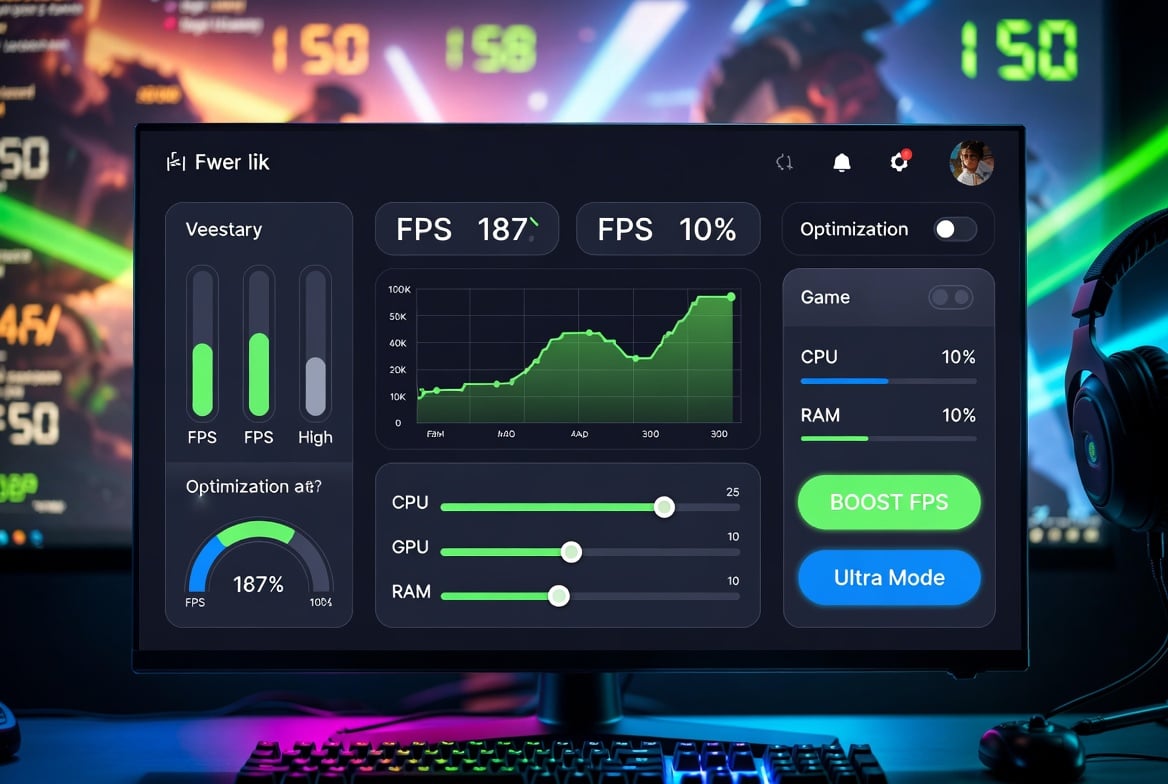
You open your game, join a match, and everything feels smooth for a few seconds. Then the frames drop. Your aim feels heavy. The game stutters right when you need it to behave. At that point, it feels less like gaming and more like negotiating with your PC.
A good FPS booster will not perform magic. It will not turn weak hardware into a high end setup overnight. But it can help your system waste fewer resources, run cleaner, and give more power to the game you are playing.
Comparison
| Software | Best For | Main Purpose |
|---|---|---|
| Hone | Overall PC gaming performance | Boosting FPS, reducing clutter, improving smoothness |
| ExitLag | Online games | Improving connection routes and reducing lag |
| Razer Cortex | Simple game boosting | Closing background tasks before gaming |
| NVIDIA App | NVIDIA GPU users | Driver updates and game setting control |
| AMD Adrenalin | AMD Radeon users | Radeon settings, drivers, and performance tools |
| MSI Afterburner | Performance tracking | Monitoring FPS, temperatures, and hardware load |
| Process Lasso | CPU control | Managing CPU usage and system response |
1. Hone
Hone takes the number 1 spot because it is built for gamers who want better PC performance without digging through every setting by hand.
It helps you optimize your system so more of your PC power goes toward your game instead of random background tasks. That matters because small issues can stack up. A few apps, weak settings, and extra processes may not seem like much alone, but together they can hurt your FPS.
| Detail | Hone |
|---|---|
| Best For | Players who want the best overall FPS booster |
| Main Job | PC gaming optimization |
| Helps With | FPS, stutter, system clutter, and game smoothness |
| Best Fit | Competitive and casual PC gamers |
The logic is simple. Your game needs CPU power, GPU power, memory, and stable system behavior. If your PC is busy doing other things, your game gets less room to breathe.
Hone is useful because it gives you a cleaner way to tune your PC for gaming performance. You do not need to guess which settings matter. You can start with one tool that is focused on gaming performance.
If you want a strong game FPS booster, Hone is the best place to start. After that, ExitLag and Razer Cortex are also great, but each have their own strengths.
2. ExitLag
ExitLag is number 2, but it is important to understand what it does.
ExitLag is different from Hone. Hone focuses more on your PC and local gaming performance. ExitLag focuses more on your internet route to the game server. That is why both can be mentioned together. They do not solve the same problem.
| Detail | ExitLag |
|---|---|
| Best For | Online gamers |
| Main Job | Connection route optimization |
| Helps With | Ping spikes, packet loss, and online delay |
| Best Fit | Players with stable FPS but bad online feel |
You may have good FPS and still feel lag. That can happen when your connection to the server is unstable. Your PC may show smooth frames, but your actions may reach the server late.
That is where ExitLag makes sense. It can help online games feel more responsive by improving the route your connection takes.
Use ExitLag if your game looks smooth but feels delayed. It is especially useful when you deal with rubber banding, strange hit registration, or ping that jumps around like it had too much coffee.
3. Razer Cortex
Razer Cortex is the third pick because it is simple, well known, and easy to use.
It is not as complete as Hone for full PC gaming optimization, and it is not a connection tool like ExitLag. Its main job is to help free system resources when you launch a game.
| Detail | Razer Cortex |
|---|---|
| Best For | Simple game boosting |
| Main Job | Closing or pausing background activity |
| Helps With | Resource cleanup and smoother launches |
| Best Fit | Beginners and casual players |
The logic here is easy. Your game needs resources. Background apps also use resources. If too many things are running while you play, your game may suffer.
Razer Cortex can help reduce that background load. It is useful if you often leave launchers, browsers, chat apps, or update tools open while gaming.
Use Razer Cortex if you want a simple tool that helps clean things up before you play. It may not give a huge boost on every PC, but if your system is crowded, it can help.
4. NVIDIA App
The NVIDIA App is a smart choice if you use an NVIDIA graphics card.
It is not a normal FPS booster like Hone. Instead, it helps you manage drivers, game settings, and NVIDIA features. This still matters because your graphics settings can have a big effect on FPS.
| Detail | NVIDIA App |
|---|---|
| Best For | NVIDIA GPU users |
| Main Job | Graphics setting control and driver updates |
| Helps With | Game settings, GPU features, and performance balance |
| Best Fit | Players who want easier NVIDIA control |
Many players use settings that are too heavy for their hardware. The game may look nice, but the FPS takes the hit. Your PC then starts acting like you asked it to run a movie studio, not a game.
The NVIDIA App helps you find better settings for your system. It can also help you keep your drivers updated, which is important for newer games.
Use it if you have an NVIDIA card and want a cleaner way to manage game performance.
5. AMD Software: Adrenalin Edition
AMD Software: Adrenalin Edition is the best choice if you use an AMD Radeon graphics card.
Like the NVIDIA App, this is not a basic booster. It is the main control center for AMD GPU users. It helps you manage Radeon settings, update drivers, and use AMD gaming features.
| Detail | AMD Adrenalin |
|---|---|
| Best For | AMD Radeon GPU users |
| Main Job | Radeon graphics control |
| Helps With | Driver updates, performance settings, and GPU features |
| Best Fit | Players with AMD gaming PCs |
Your graphics card needs the right software to perform well. If you ignore your GPU settings, you may leave performance on the table.
AMD Adrenalin is useful because it gives you direct control over your Radeon setup. You can adjust performance options, check game behavior, and keep your graphics driver ready for modern games.
Use it if your PC has an AMD Radeon card. Pair it with Hone if you want both system optimization and GPU control.
6. MSI Afterburner
MSI Afterburner is different from the other tools on this list. It is more of a monitoring and tuning tool than a simple FPS booster.
That makes it very useful. Sometimes your FPS is low, but you do not know why. MSI Afterburner helps you see what is happening inside your PC while you play.
| Detail | MSI Afterburner |
|---|---|
| Best For | Tracking performance |
| Main Job | Monitoring hardware and FPS |
| Helps With | Temperatures, GPU load, CPU load, and frame rate checks |
| Best Fit | Players who want to understand their PC |
The logic is simple. If you do not know the problem, you cannot fix it properly.
If your GPU is maxed out, your graphics card may be the limit. If your CPU is working too hard, your processor may be the issue. If your temperature is too high, your PC may slow itself down to stay safe.
MSI Afterburner helps you stop guessing. Use it to check FPS, temperatures, and hardware usage. Be careful with overclocking, though. Small changes can help, but wild changes can make your PC throw a tiny digital tantrum.
7. Process Lasso
Process Lasso is a good choice if your CPU is often under pressure.
It is not made only for gaming, but it can help your PC stay more responsive. This is useful when background processes fight with your game for CPU attention.
| Detail | Process Lasso |
|---|---|
| Best For | CPU heavy games |
| Main Job | Managing CPU behavior |
| Helps With | System response, CPU load, and background process control |
| Best Fit | Advanced users and multitaskers |
Your CPU has limited attention. Your game wants some. Windows wants some. Background apps want some. Then some random updater shows up like it owns the place.
Process Lasso helps manage that pressure. It can be useful if your game stutters when other apps are open or if your CPU usage gets too high during gameplay.
Use it if you want deeper control. If you are a beginner, start with Hone first. If you already understand basic performance settings, Process Lasso can be a useful extra tool.
How To Pick The Right FPS Booster
The best software to boost FPS in games depends on your main problem. Do not install everything at once. That can make your PC more confusing, not faster.
| Your Problem | Best Tool To Try First |
|---|---|
| Low FPS in most games | Hone |
| Online lag with good FPS | ExitLag |
| Too many background apps | Razer Cortex |
| Unsure what is wrong | MSI Afterburner |
| NVIDIA graphics settings | NVIDIA App |
| AMD graphics settings | AMD Adrenalin |
| CPU related stutter | Process Lasso |
Start with one tool, test your game, and compare the result. Look at average FPS, low FPS drops, and how smooth the game feels.
Do not only chase the highest FPS number. A stable 120 FPS can feel better than 180 FPS that keeps dropping during fights.
What FPS Boosters Can Actually Fix
FPS booster software can help with real issues, but it has limits.
It can help with background apps, poor settings, driver setup, system clutter, CPU pressure, and online routing issues.
It cannot fully fix old hardware, weak cooling, very low memory, or game bugs that need developer patches.
This is why Hone is a strong first pick. It helps you improve your PC gaming setup before you start blaming every other part of your system. ExitLag is the better pick when the issue is your online connection. Razer Cortex is useful when you want a simple cleanup before launching games.
The goal is not to make your PC magical. The goal is to make it stop wasting power on things that do not help your game.
Conclusion
Hone is the best overall software to boost FPS in games because it focuses on PC gaming performance, system optimization, and smoother gameplay. If you want one main FPS booster, start there.
ExitLag is number 2 because it solves a different problem. It helps with online connection routes, not the same kind of PC optimization that Hone offers.
Razer Cortex is number 3 because it is simple and useful for cleaning up background activity before gaming.
After that, your best choice depends on your hardware. Use NVIDIA App for NVIDIA graphics cards and AMD Adrenalin for AMD Radeon cards. Use MSI Afterburner if you want to monitor performance. Use Process Lasso if CPU control matters.
Start simple. Test properly. Let your PC breathe a little. It has been through enough.
FAQs
What Is The Best Software To Boost FPS In Games?
Hone is the best overall pick because it focuses on PC gaming performance and optimization. It is the best first choice if you want a direct way to improve FPS and reduce stutter.
Is Hone A Good Game FPS Booster?
Yes. Hone is a strong game FPS booster because it is built around gaming performance. It helps your PC focus more on games and less on background waste.
Is ExitLag The Same As Hone?
No. ExitLag is different from Hone. Hone focuses more on your PC and FPS performance. ExitLag focuses more on your online connection route to the game server.
Can Razer Cortex Boost FPS?
Razer Cortex can help boost FPS if background apps are using too many resources. It works best when your PC has extra tasks running before you launch a game.
Should I Use More Than One FPS Booster?
You can, but do not overdo it. A clean setup is better. Hone plus your GPU software is a good start. Add ExitLag only if your online games feel laggy.
Why Is My FPS Still Low After Using Software?
Your hardware may be the limit. A booster can help with wasted resources and poor settings, but it cannot fully replace a stronger CPU, better GPU, more memory, or better cooling.
What Matters More, High FPS Or Stable FPS?
Stable FPS usually feels better. A game that stays near 120 FPS can feel smoother than a game that jumps between 180 FPS and 70 FPS. Low drops are what you feel most during action.



How to Recover Lost Game Files from an External Drive on Mac

Mystery Anime You’ll Regret Starting at Midnight | Part 2

ARC Raiders Frozen Trail Guide: How to Board and Clear the Frigate

Rockstar Games Integrates Advanced Ray Tracing for GTA VI

How to Update Outdated Graphics Drivers for Better Gaming Performance and Higher FPS

The Most Popular Car Game Isn’t Where Players Stay Longest

Canada’s Gaming Audience Is Bigger Than the Old Stereotype

Mystery Anime You’ll Regret Starting at Midnight | Part 1

Anime You’ll Be Glad You Added to Your Fall Watchlist (Part 2) 🍂

WoW Forever Leveling: What Is New on the Road from 1 to 60

MM2 weapon rarity tiers explained for traders

Blox Fruits Physical vs Permanent Fruits: What’s the Difference?

What to Check Before Buying FC 27 Coins Online

Can You Stream Kick on Xbox: Complete Guide for Xbox Users

Pokémon Announces New Movie With a New Hero and Mimikyu

Double-Sentinel Defensive Holds Disrupt Fast Valorant Site Executes
-
 Anime3 weeks ago
Anime You’ll Be Glad You Added to Your Fall Watchlist (Part 2) 🍂
-
 Features2 weeks ago
WoW Forever Leveling: What Is New on the Road from 1 to 60
-
 Esports3 weeks ago
MM2 weapon rarity tiers explained for traders
-
 Features4 weeks ago
Blox Fruits Physical vs Permanent Fruits: What’s the Difference?
-
 Features4 weeks ago
What to Check Before Buying FC 27 Coins Online
-
 Social Media4 weeks ago
Can You Stream Kick on Xbox: Complete Guide for Xbox Users
-
 Anime4 weeks ago
Pokémon Announces New Movie With a New Hero and Mimikyu
-
 Esports4 weeks ago
Double-Sentinel Defensive Holds Disrupt Fast Valorant Site Executes
-
 Features2 weeks ago
Canada’s Gaming Audience Is Bigger Than the Old Stereotype
-
 Anime2 weeks ago
Mystery Anime You’ll Regret Starting at Midnight | Part 1
-
 Features1 week ago
The Most Popular Car Game Isn’t Where Players Stay Longest
-

 Features3 weeks ago
Why Sports Games Keep Getting Better at Simulating the Real Thing