
Guides
How to Optimize PC for Gaming: A College Student’s Step-by-Step Guide

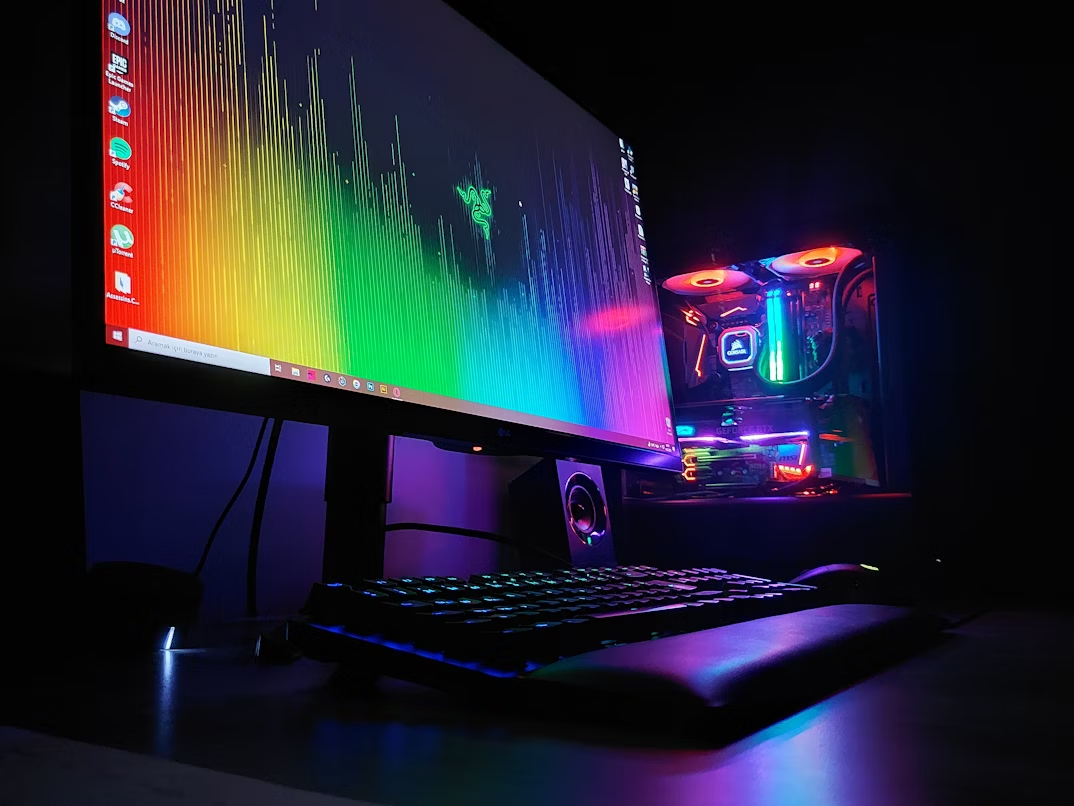
If you’re a student who enjoys gaming after classes, you know how annoying lag and slow load times can be. Learning how to optimize PC for gaming can turn your setup from sluggish to smooth without expensive upgrades. Whether you play competitive shooters or casual titles, a few changes can make a big difference.
This guide explains how to optimize a computer for gaming on a student budget. Let’s make your system faster, cleaner, and more responsive.
1. Start with the Basics: Clean and Update Everything
Before tweaking hardware, focus on cleaning and updating your system. Old drivers and cluttered storage can slow things down fast.
- Update your drivers: Visit the NVIDIA, AMD, or Intel site to get the latest GPU and chipset drivers.
- Remove junk files: Use Windows’ “Disk Cleanup” or apps like CCleaner to delete temp files.
- Uninstall unused apps: Go to Control Panel > “Add or Remove Programs” and clean up what you don’t need.
- Free up disk space: Keep at least 20% of your drive empty for optimal performance.
These simple steps are often the best way to optimize PC for gaming before you think about new gear.
2. Adjust System Settings for Performance
Once your system is clean, it’s time to tweak Windows settings for better gaming speed.
- Activate Game Mode: Open Settings → Gaming → Game Mode → Turn it on.
- Disable background apps: Press Ctrl + Shift + Esc, open Task Manager, and close unnecessary apps.
- Set High Performance mode: In Control Panel → Power Options → Choose “High Performance.”
- Disable startup programs: Under Task Manager’s “Startup” tab, disable apps that launch on boot.
These steps free system memory and CPU power for games. For assignments that require high performance too, you can always pay for research paper writing to save time and focus on studying or optimizing your system.
3. Optimize Your GPU for Gaming
Knowing how to optimize GPU for gaming is key to higher frame rates. Both NVIDIA and AMD users can make big gains by changing a few control panel settings.
For NVIDIA users
- Open NVIDIA Control Panel → Manage 3D Settings.
- Set Power Management Mode to Prefer Maximum Performance.
- Set Texture Filtering Quality to High Performance.
- Disable Vertical Sync (V-Sync) to reduce input lag.
For AMD users
- Open Radeon Software → Gaming → Graphics.
- Enable Anti-Lag and adjust Radeon Chill to balance temperature and speed.
- Set Image Sharpening for better visuals without losing performance.
If you’re wondering how to make your computer faster for gaming, these tweaks are the quickest way without spending money.
4. Improve Storage and Memory Speed
Games load faster when your storage is optimized. Here’s what to do:
| Component | Tip for Better Gaming Performance |
| SSD | Install your operating system and games on an SSD for faster load times. |
| RAM | Use at least 16GB for modern games. If you multitask (music, Discord, Chrome), 32GB helps. |
| Page File | Let Windows manage it automatically to prevent crashes. |
Want to make your gaming PC run faster without upgrades? Try clearing temporary files:
- Press Win + R, type temp, and delete everything.
- Repeat for %temp% and prefetch.
Doing this once a month keeps things running smoothly.
5. Optimize Internet and Network Settings
Online play demands a steady connection. A few quick changes can reduce lag and ping spikes.
- Use Ethernet instead of Wi-Fi whenever possible.
- Enable QoS (Quality of Service) in your router settings to prioritize gaming traffic.
- Close bandwidth-heavy apps like Netflix or file downloads before gaming.
- Pick the nearest game server for lower latency.
A fast network is often overlooked when students think about how to optimise PC for gaming, but it’s just as important as hardware.
6. Tweak Game Graphics Settings
Every game lets you adjust performance settings. Finding the right mix between visuals and frame rate is key.
Here are the best gaming tips and tricks for balancing performance:
- Lower Shadows and Anti-aliasing to gain more FPS.
- Reduce Texture Quality slightly to lighten GPU load.
- Use Resolution Scaling to run slightly below native resolution for smoother gameplay.
- Keep V-Sync off if you have screen tearing or input lag issues.
These adjustments vary per game, so experiment and find what feels best.
7. Keep Your PC Cool and Organized
A hot system means slower speeds. Proper cooling can speed up PC for gaming by preventing thermal throttling.
Tips for better airflow:
- Clean your fans and vents regularly.
- Add an extra case fan if your CPU or GPU overheats.
- Use cable ties to keep wires from blocking airflow.
- Monitor temperatures with free tools like HWMonitor or MSI Afterburner.
When you keep your system cool, it performs better for both study projects and game sessions.
8. Benchmark and Track Progress
After optimizing, test your changes. This is how you know if your efforts worked.
Use benchmarking software like:
- 3DMark for overall GPU performance.
- Unigine Heaven to test frame stability.
- UserBenchmark for quick comparison to other setups.
Keep an eye on FPS, temperatures, and load times. Adjust small settings based on results for the best way to optimize PC for gaming that fits your setup.
9. Try Cloud Gaming When Needed
If your laptop can’t handle modern games, cloud gaming is a solid alternative for college dorms.
Platforms like GeForce NOW, Xbox Cloud Gaming, and Amazon Luna let you play high-end titles remotely.
To get smooth streaming:
- Use wired or 5GHz Wi-Fi.
- Maintain at least 15 Mbps download speed.
- Lower resolution to 1080p for stable performance.
It’s not the same as local play, but it’s perfect when you don’t have access to high-end hardware.
10. Stay Consistent with Maintenance
Optimization isn’t a one-time task. Keep up with updates, temperature checks, and cleanups. Here’s a quick checklist:
- Update GPU and Windows monthly.
- Clear temporary files weekly.
- Monitor CPU/GPU temps regularly.
- Restart your PC after long sessions.
Regular maintenance helps you make PC games run faster and keeps your system ready for both gaming and coursework.
Final Thoughts
Learning how to optimize PC for gaming as a college student doesn’t require an expensive setup. It’s about smart tweaks, clean software, and consistent maintenance.
Focus on efficiency, not just hardware upgrades. With the right steps, your PC can perform like new — even during long study breaks filled with your favorite games.
FAQs
1. What’s the easiest way to optimize PC for gaming?
Clean junk files, update drivers, and enable Windows Game Mode for instant improvements.
2. Do I need to upgrade hardware to make my computer faster for gaming?
Not always. Small tweaks like using an SSD and better GPU settings often deliver noticeable results.
3. How do I optimize GPU for gaming safely?
Use manufacturer software to change settings. Avoid extreme overclocking without proper cooling.
4. Can cloud gaming replace a gaming PC?
Yes, if you have fast internet. It’s a budget-friendly option for college students.
5. How often should I optimize my PC?
Do a quick cleanup weekly and a full optimization monthly for consistent performance.



How to Recover Lost Game Files from an External Drive on Mac

Mystery Anime You’ll Regret Starting at Midnight | Part 2

ARC Raiders Frozen Trail Guide: How to Board and Clear the Frigate

Rockstar Games Integrates Advanced Ray Tracing for GTA VI

How to Update Outdated Graphics Drivers for Better Gaming Performance and Higher FPS

The Most Popular Car Game Isn’t Where Players Stay Longest

Canada’s Gaming Audience Is Bigger Than the Old Stereotype

Mystery Anime You’ll Regret Starting at Midnight | Part 1

Anime You’ll Be Glad You Added to Your Fall Watchlist (Part 2) 🍂

WoW Forever Leveling: What Is New on the Road from 1 to 60

MM2 weapon rarity tiers explained for traders

Blox Fruits Physical vs Permanent Fruits: What’s the Difference?

What to Check Before Buying FC 27 Coins Online

Can You Stream Kick on Xbox: Complete Guide for Xbox Users

Pokémon Announces New Movie With a New Hero and Mimikyu

Double-Sentinel Defensive Holds Disrupt Fast Valorant Site Executes
-
 Anime3 weeks ago
Anime You’ll Be Glad You Added to Your Fall Watchlist (Part 2) 🍂
-
 Features2 weeks ago
WoW Forever Leveling: What Is New on the Road from 1 to 60
-
 Esports3 weeks ago
MM2 weapon rarity tiers explained for traders
-
 Features4 weeks ago
Blox Fruits Physical vs Permanent Fruits: What’s the Difference?
-
 Features4 weeks ago
What to Check Before Buying FC 27 Coins Online
-
 Social Media4 weeks ago
Can You Stream Kick on Xbox: Complete Guide for Xbox Users
-
 Anime4 weeks ago
Pokémon Announces New Movie With a New Hero and Mimikyu
-
 Esports4 weeks ago
Double-Sentinel Defensive Holds Disrupt Fast Valorant Site Executes
-
 Features2 weeks ago
Canada’s Gaming Audience Is Bigger Than the Old Stereotype
-
 Anime2 weeks ago
Mystery Anime You’ll Regret Starting at Midnight | Part 1
-

 Features3 weeks ago
Why Sports Games Keep Getting Better at Simulating the Real Thing
-
 Features1 week ago
The Most Popular Car Game Isn’t Where Players Stay Longest