
Technology
How to Update Outdated Graphics Drivers for Better Gaming Performance and Higher FPS

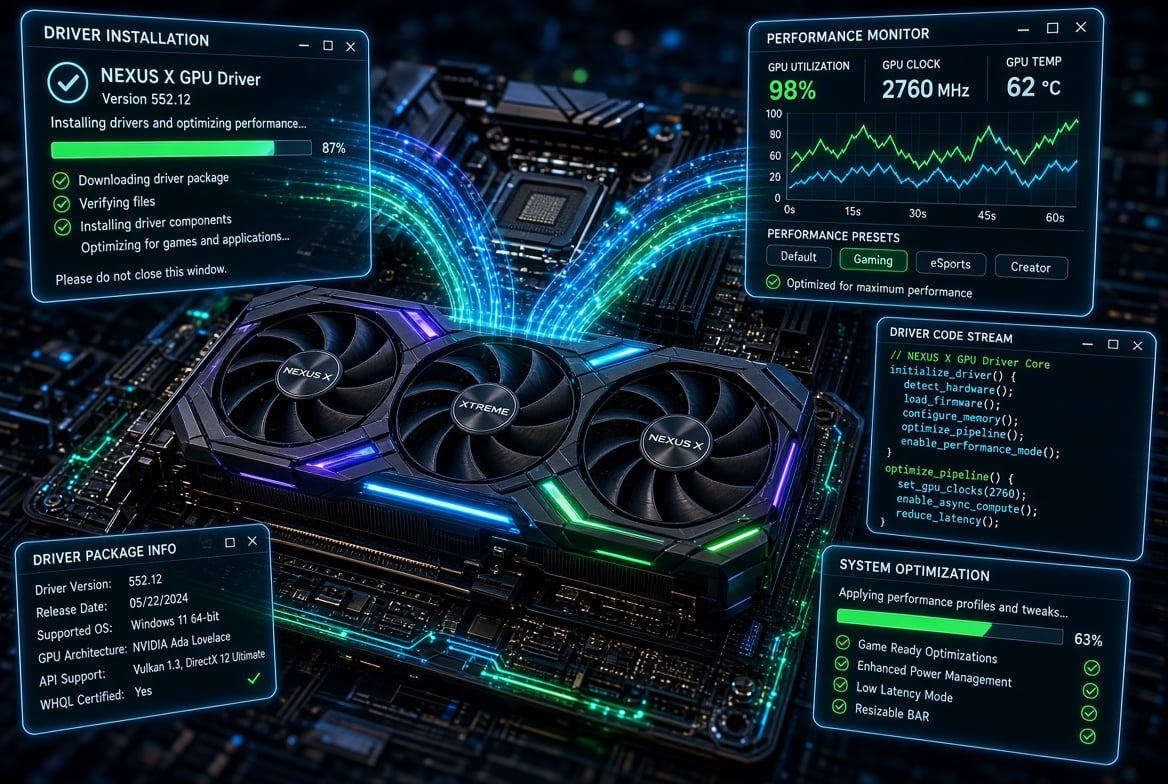
Your graphics driver acts as the direct translation layer between Windows, your game engine, and the physical GPU. When GPU drivers fall behind, you run into modern game bugs, visual glitches, frame-time spikes, and avoidable launch crashes. Updating your display drivers ensures your graphics card gets day-one game patches, optimized shading pipelines, and stable frame delivery.
Here are the most effective ways to update your graphics drivers on Windows, starting with a streamlined dedicated tool down to built-in system options.
Method 1: Update Graphics Drivers via Driver Booster 14

If you want smooth, hitch-free frame rates in fast-paced competitive games like Call of Duty, Fortnite, or Valorant, running optimized display drivers is non-negotiable. Driver Booster 14 simplifies this workflow down to a single click. Instead of visiting GPU manufacturer portals manually, its upgraded engine scans your hardware stack, cross-references compatibility, and deploys verified driver updates automatically.
Key Highlights in Driver Booster 14:
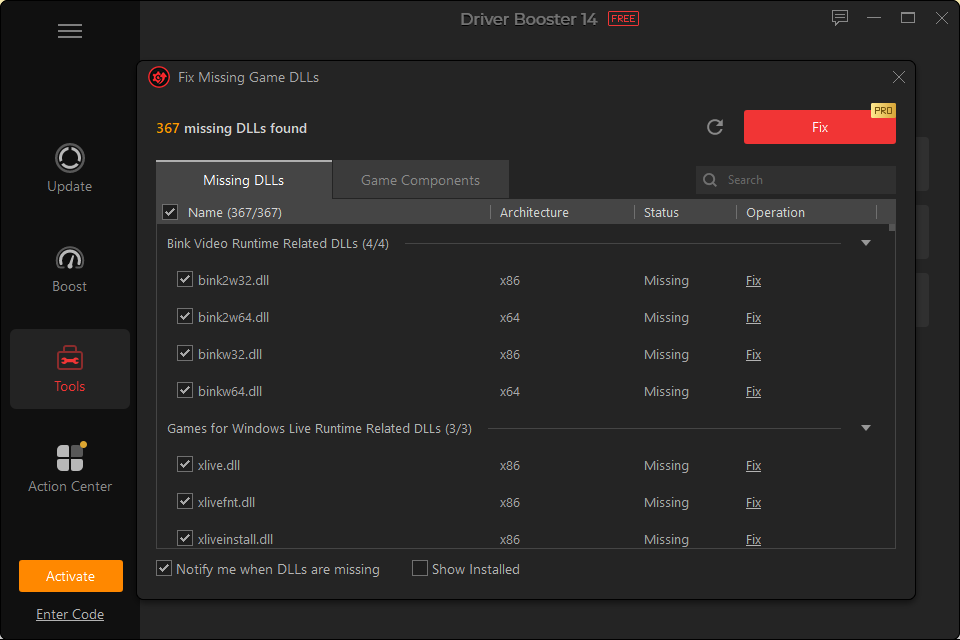
- 23,000,000+ Driver Database: Expands coverage across every major vendor (NVIDIA, AMD, Intel, Realtek, ASUS, MSI) to catch both GPU and system-level chipset drivers.
- Smart Dual-Engine Scanning: Seamlessly detects both the absolute “latest” performance drivers and the “most stable” tested releases, giving gamers total choice over their driver build.
- Revamped Installation Engine: Ensures clean multi-version driver installations without update conflicts or corrupted display profiles.
- Dual WHQL & Security Certification: All payloads pass stringent Microsoft WHQL testing alongside IObit’s proprietary validation to ensure zero system stability issues.
- Automatic Rollback Protection: Creates dedicated system restore points and driver backups before changing any display software.
- Modernized UI: Completely overhauled, minimalist interface designed for instant navigation without clutter.
Step-by-Step Guide: How to Update Outdated Graphics Drivers
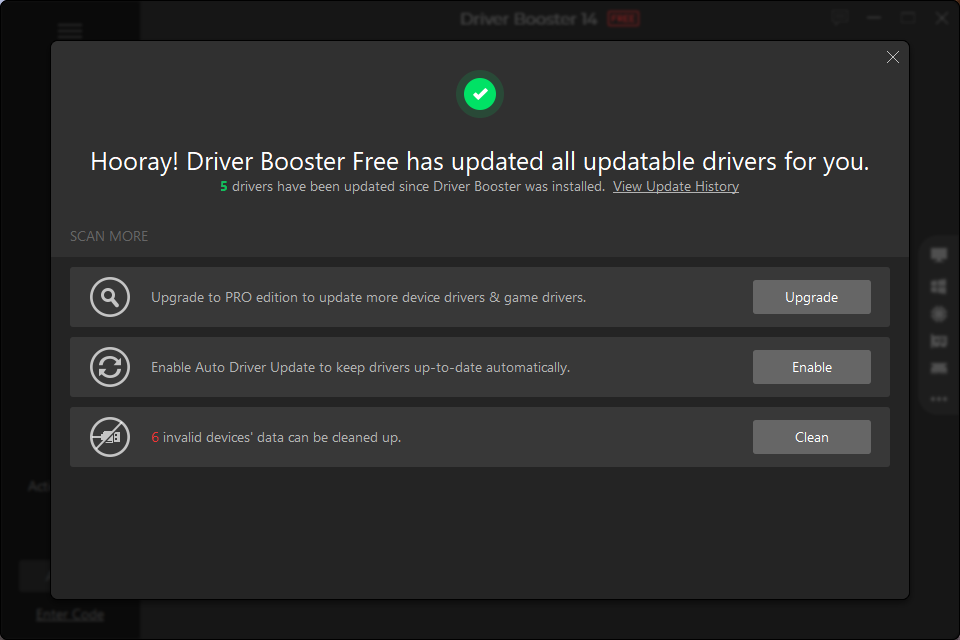
With Driver Booster 14, users can update outdated graphics drivers with a single click. Here is how to do it:
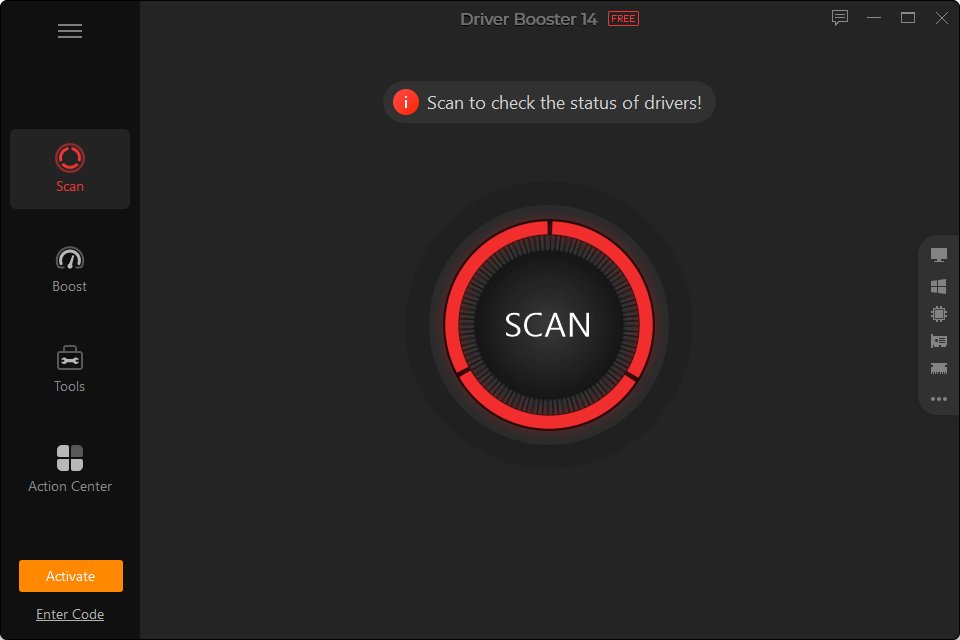
- Launch the Scan: Open Driver Booster 14’s redesigned dashboard and click Scan. The upgraded engine will check your GPU and system components against its expanded database.
- Review Display Drivers: Locate your NVIDIA, AMD, or Intel display adapter in the results list. Toggle between the latest build or the most stable driver depending on your preference.
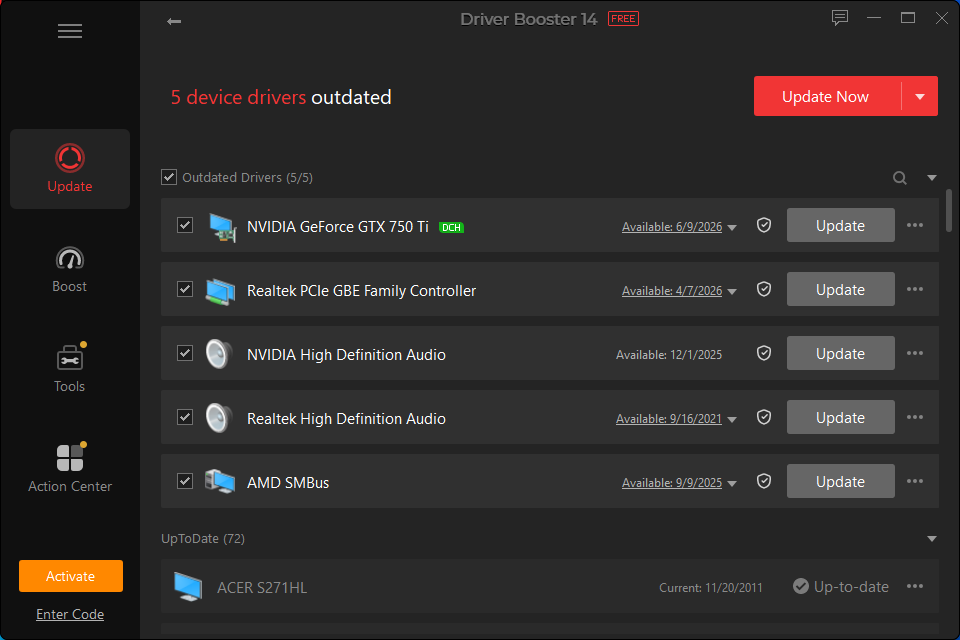
- Apply & Reboot: Click Update Now. The revamped installer safely processes the package in the background. Reboot your PC once finished to initialize the new graphics driver.
Method 2: Update Graphics Drivers Using Windows Update
Windows includes a basic built-in driver updater option to pull generic driver updates directly from Microsoft’s servers. While convenient, keep in mind that Windows Update usually distributes generic WHQL drivers rather than specialized, feature-rich gaming drivers.
Steps to Check via Windows Update:
- Open the Start Menu and launch Settings.
- Select Windows Update from the side menu.
- Click Check for updates. If Windows finds an available display driver, it will list it under optional updates or begin downloading it automatically.
- Once installed, restart your PC to apply the display changes.
Final Thoughts
Keeping display drivers fresh is one of the easiest ways to squeeze extra frame rates out of your current hardware. While Windows Update offers basic driver maintenance, Driver Booster 14 delivers a far more comprehensive solution for gamers—giving you access to a 23-million-driver database, multi-version stability controls, and automated safety backups in a clean, modern interface.



What It Takes to Stream One Game to Hundreds of Screens at Once

Best DNS Servers for Gaming in 2026: 6 Options for Speed and Stability

How to Grow a Gaming TikTok From Zero in 2026: 8 Steps

Level Up Your Audio: How to Score the Next Big Indie Game from Your Bedroom
The Parent Companies Behind Your Favorite Games

A Must watch Wholesome Anime That Feels Surprisingly Relatable!

Steal a Brainrot Items Guide: How to Get Rare Brainrots and Build a Stronger Base

Best MM2 Weapons to Collect: Knives, Guns and Godlys Explained

WoW Forever Leveling: What Is New on the Road from 1 to 60

Canada’s Gaming Audience Is Bigger Than the Old Stereotype

8 Underrated PC Games Worth Playing in 2026 (That Aren’t Getting the Attention They Deserve)

ARC Raiders Frozen Trail Guide: How to Board and Clear the Frigate

The Most Popular Car Game Isn’t Where Players Stay Longest

Why Sports Games Keep Getting Better at Simulating the Real Thing

Rockstar Games Integrates Advanced Ray Tracing for GTA VI

Mystery Anime You’ll Regret Starting at Midnight | Part 1
-
 Features4 weeks ago
WoW Forever Leveling: What Is New on the Road from 1 to 60
-
 Features3 weeks ago
Canada’s Gaming Audience Is Bigger Than the Old Stereotype
-
 Features4 weeks ago
8 Underrated PC Games Worth Playing in 2026 (That Aren’t Getting the Attention They Deserve)
-
 Features2 weeks ago
ARC Raiders Frozen Trail Guide: How to Board and Clear the Frigate
-
 Features3 weeks ago
The Most Popular Car Game Isn’t Where Players Stay Longest
-
 Features4 weeks ago
Why Sports Games Keep Getting Better at Simulating the Real Thing
-
 Gaming News2 weeks ago
Rockstar Games Integrates Advanced Ray Tracing for GTA VI
-
 Anime3 weeks ago
Mystery Anime You’ll Regret Starting at Midnight | Part 1
-

 Features4 weeks ago
From Consoles to Phones: How Canadian Gaming Became an Anytime Experience
-

 Anime2 weeks ago
Mystery Anime You’ll Regret Starting at Midnight | Part 2
-
 Technology2 weeks ago
How to Recover Lost Game Files from an External Drive on Mac
-
 Features6 days ago
Steal a Brainrot Items Guide: How to Get Rare Brainrots and Build a Stronger Base