
Technology
How to Recover Lost Game Files from an External Drive on Mac

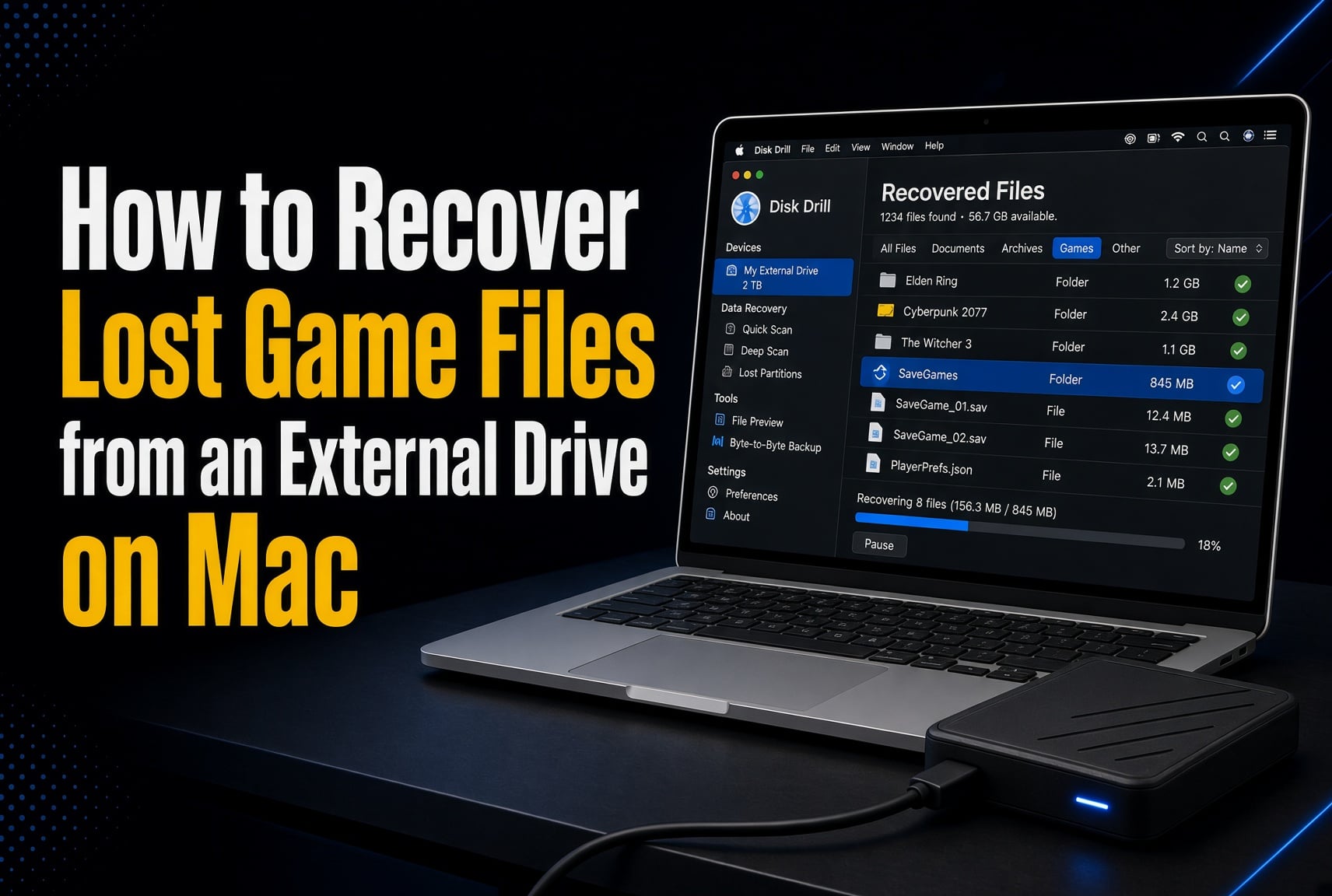
Mac gaming is finally a real thing. The problem is space. One big game can take up 100GB or more, and a lot of Macs don’t have much room inside. So most of us buy an external SSD and pile everything onto it. The Steam library. Years of Minecraft worlds. Mods. That folder of clips you swear you’ll edit someday.
Then one day you plug it in and nothing happens. Or you open your saves folder and it’s empty.
Don’t panic yet. Most of the time, the drive itself is fine. The problem is with how the data is organized on it. Maybe the file system got corrupted. Maybe the cable came out during a download. Maybe something got formatted by mistake. In cases like these, your files are often still on the drive. Your Mac just can’t find them.
Why are they still there? When a file is deleted or lost, the data usually isn’t wiped right away. Your Mac just marks that space as free to use. The file stays put until something new gets written on top of it. That’s the reason recovery software can work at all. Keep that in mind, because it explains almost every tip in this guide.
Below, you’ll find every way to get your data back on a Mac, from free built-in tools to Mac data recovery software, starting with the easiest.
First, Figure Out What You Actually Need Back
Not everything on a gaming drive matters the same. Losing a 120GB game install hurts, but it’s the easiest thing to fix. Your launcher can just download it again. Save your effort for the stuff you can’t download.
| What you lost | Can you download it again? | Where to look first |
|---|---|---|
| Game installs (Steam, Epic, GOG, Battle.net) | Yes | Just reinstall it from your launcher |
| Save files | Sometimes | Cloud saves, then your Mac’s Library folder |
| Minecraft worlds and other builds | No, unless you backed them up | Time Machine, cloud storage, recovery software |
| Mods, custom maps, and settings | Not your exact setup | Recovery software, synced folders |
| Clips, recordings, and screenshots | No | Trash, cloud storage, recovery software |
| Stream VODs, video edits, and mod or game projects | No | Time Machine, cloud storage, recovery software |
Here’s some good news about saves. Even when a game is installed on an external drive, a lot of Mac games still keep their save files on your Mac’s internal drive. They usually live in ~/Library/Application Support. To get there, open Finder, click the Go menu, hold down the Option key, and click Library. Look there before you decide your progress is gone.
Don’t Make Things Worse
Remember, your lost files are only safe until something writes over them. So the less you do to the drive, the better your chances. Most files are lost for good not because of the first problem, but because of what people do right after they notice it.
- Stop using the drive right away. Don’t save, copy, or download anything onto it.
- If the drive still opens but acts strange, copy your most important files to another drive now. Start with small things you can’t replace, like saves and worlds, then clips. Skip games you can download again. A dying drive may only work a few more times, so don’t waste them.
- Quit Steam and any other game launchers. They write to the drive in the background, and an auto-update could land right on top of your lost files.
- Install recovery software on your Mac’s internal drive, never on the drive you’re trying to save.
- Don’t run Disk Utility’s First Aid yet. It changes how the drive is organized, which can make recovery harder.
- Don’t format the drive. If your Mac says the disk isn’t readable, click Ignore, not Initialize.
- If it’s an SSD, move fast. Some SSDs clean out deleted data in the background, and once that happens, no tool can bring it back. Hard drives don’t do this, so they give you more time.
One more thing. If you used the drive as extended storage for a PS5 or Xbox, your Mac won’t be able to read it. That’s normal, and it doesn’t mean the drive is broken. Just don’t click Initialize, because that will erase everything on it.
How to Get Your Files Back
Try these in order. The first few are free, quick, and safe. Only move on to the next one if the one before it didn’t work.
1. Check the Trash
When you delete something from an external drive in Finder, your Mac doesn’t erase it straight away. It goes into a hidden Trash folder on that drive. Here’s the tricky part: you only see those files in your Mac’s Trash while the drive is plugged in. Unplug the drive and they seem to disappear from the Trash. They didn’t. Plug it back in and look again.
- Connect the external drive to your Mac.
- Click the Trash icon in your Dock.
- Look for the files you want back.
- Right-click them and choose Put Back. They’ll go back to where they were on the drive.
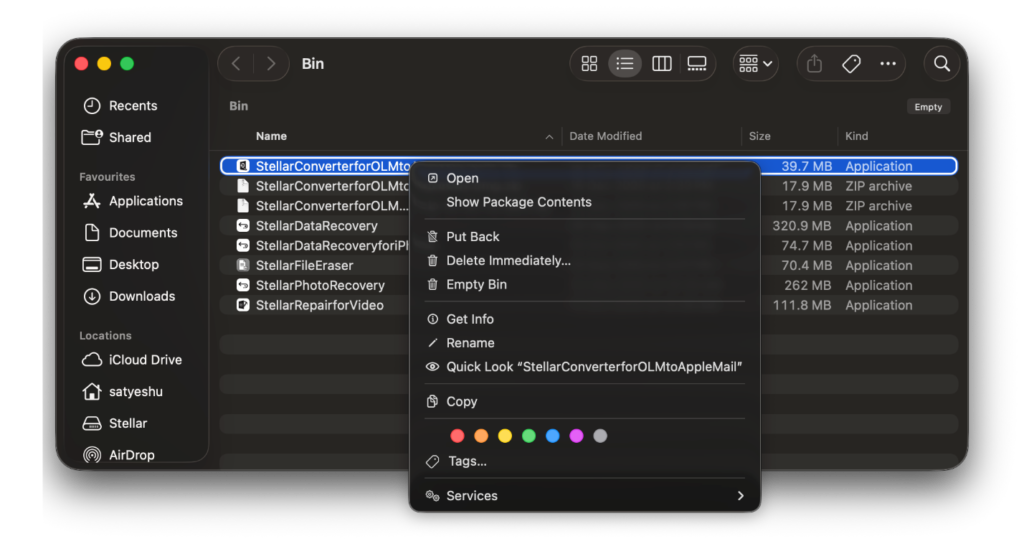
Just so you know, uninstalling a game through Steam or another launcher skips the Trash completely. That’s fine for the game itself, since you can always download it again.
2. Restore from a Time Machine Backup
Time Machine is the backup tool that comes with every Mac. Think of it as save points for your files. It keeps hourly backups for the last 24 hours, daily backups for the last month, and weekly backups after that. When the backup drive fills up, it deletes the oldest ones first.
The catch is that it only helps if you set it up before you lost anything. It also skips external drives unless you tell it not to. To check, open System Settings > General > Time Machine and click Options. If your gaming drive is on the Exclude from backups list, it isn’t being backed up. If it’s not on the list, you’re covered.
- In Finder, open the folder on the external drive where the missing files used to be.
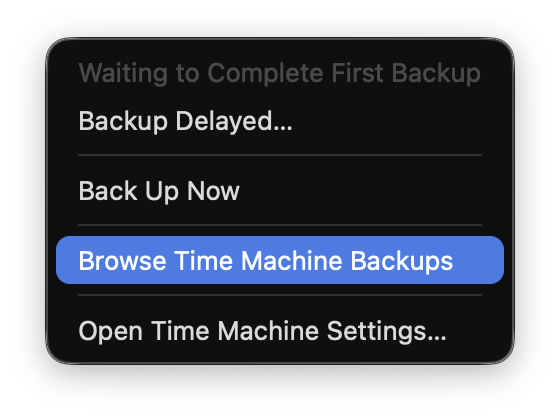
- Click the Time Machine icon in the menu bar.
- Choose Browse Time Machine Backups.
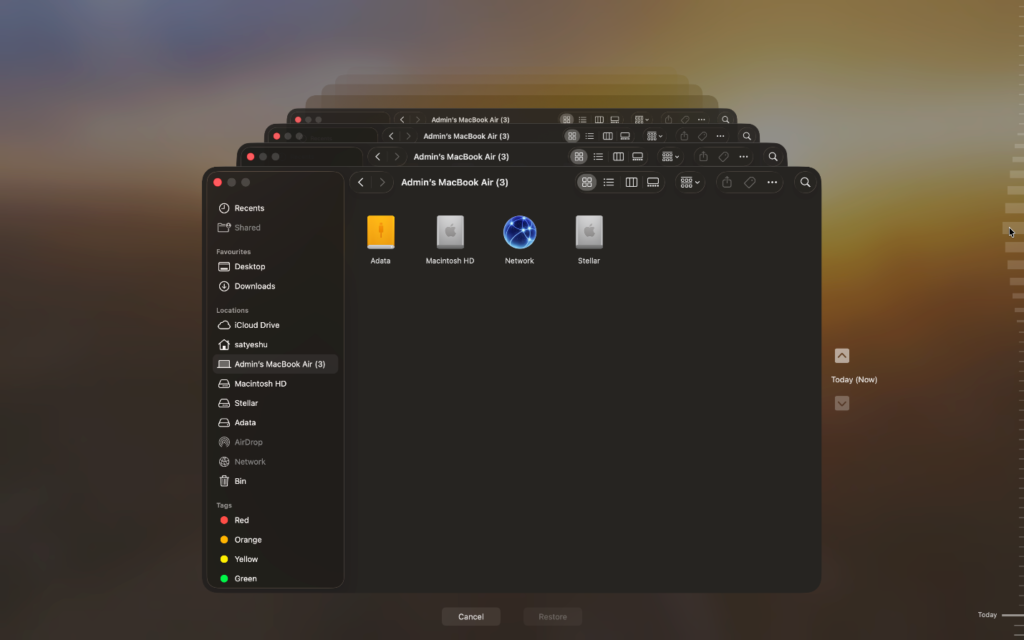
- Scroll back to a time before the files went missing.
- Select the files or folders you want and click Restore.
3. Check Cloud Saves and Cloud Storage
Before you try anything harder, check if a copy already exists online. This won’t cover everything, but for saves, documents, and videos, it’s often the fastest fix.
Game launcher cloud saves
Steam, Epic, GOG Galaxy, and Battle.net can all back up your saves online for games that support it. To check a game in Steam, right-click it, choose Properties, and look under General. If Steam Cloud is on, reinstall the game on a healthy drive and launch it. Your progress should download by itself. Most Apple Arcade games save your progress to iCloud in the same way.
If the game is still there but won’t run properly, Steam can repair it without touching your saves. Right-click the game, go to Properties > Installed Files, and click Verify integrity of game files.
iCloud Drive
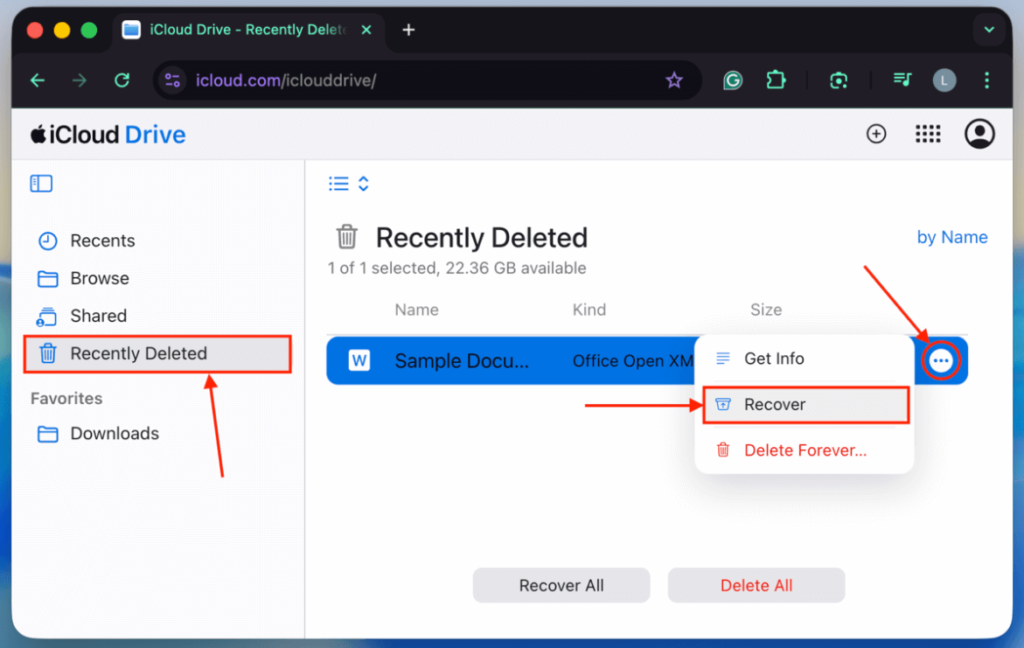
iCloud Drive keeps your files in sync on every device signed in to your Apple Account. When you delete something, it moves to a Recently Deleted folder and stays there for up to 30 days.
- Go to iCloud.com and sign in with your Apple Account.
- Click Drive, then open Recently Deleted in the sidebar.
- Select the files you want and click Recover.
Dropbox, Google Drive, and OneDrive
These services hold on to deleted files for a while too. On free plans, you usually get about 30 days to get them back. They also keep older versions of files that were changed. That helps if a config file or world backup got damaged or saved over. Open the service in your browser, right-click the file, and look for Version history or Previous versions.
And if you ever shared a clip on YouTube, Discord, or social media, that upload counts as a backup too. It might not be as sharp as the original, but it’s a lot better than nothing.
4. Use Mac Data Recovery Software
No backup, empty Trash, nothing in the cloud? Then it’s time for Mac data recovery software. Good recovery software scans every part of the drive and rebuilds lost files from the data that’s still sitting there. If your Mac can see the drive in Disk Utility and the files haven’t been written over, there’s a good chance you’ll get them back.
Not all Mac data recovery software is the same. Before you pay for anything, make sure the tool you pick:
- Works with your drive’s format, whether that’s APFS, HFS+, exFAT, or FAT32
- Lets you scan and preview your files for free before you buy
- Can recover video files like MOV and MP4, not just photos and documents
- Can make a disk image of a failing drive
A smart move if the drive is acting up: check whether your recovery software can make a disk image, which is a full copy of the drive. If it can, make the image first and scan that instead. That way the weak drive only has to be read once.
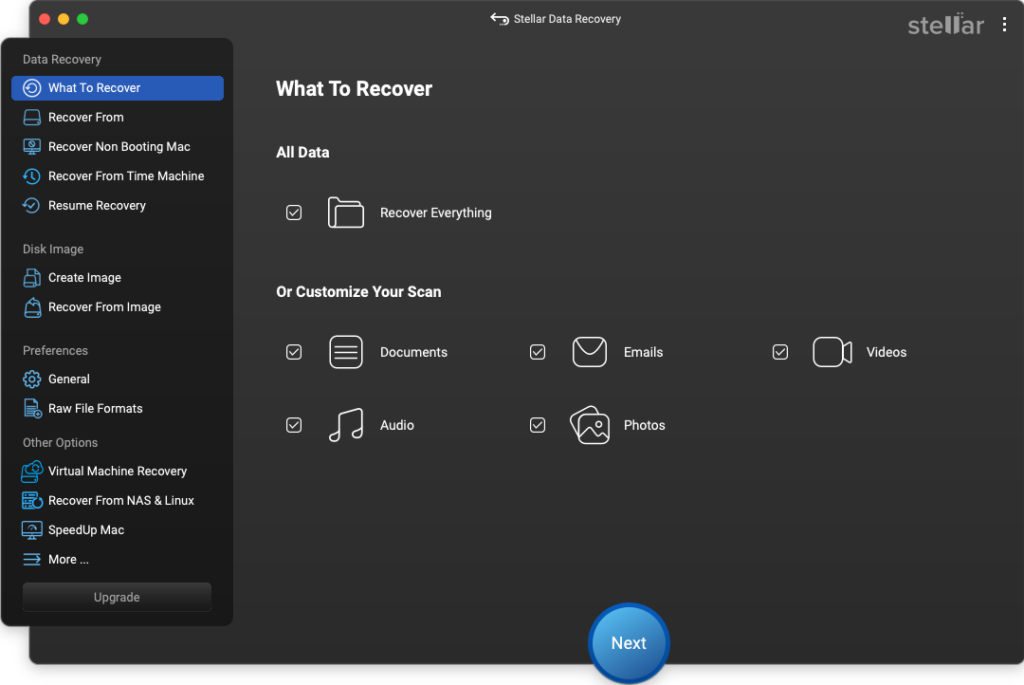
- Download, install, and open the recovery software on your Mac’s internal drive, not the one you’re recovering.
- On the What to Recover screen, pick the file types you want and click Next. If you’re after saves, mods, or world files, select everything. Game files often don’t fit simple groups like Documents or Photos.
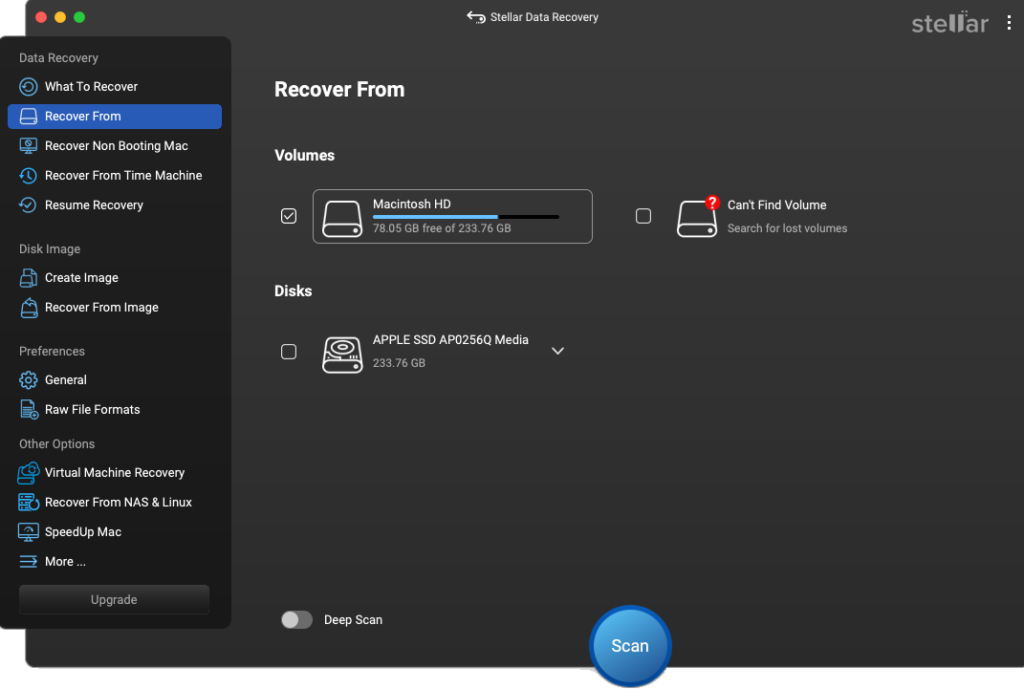
- Choose your external drive and click Scan.
- Preview what the scan finds. This is your chance to check that your clips actually play.
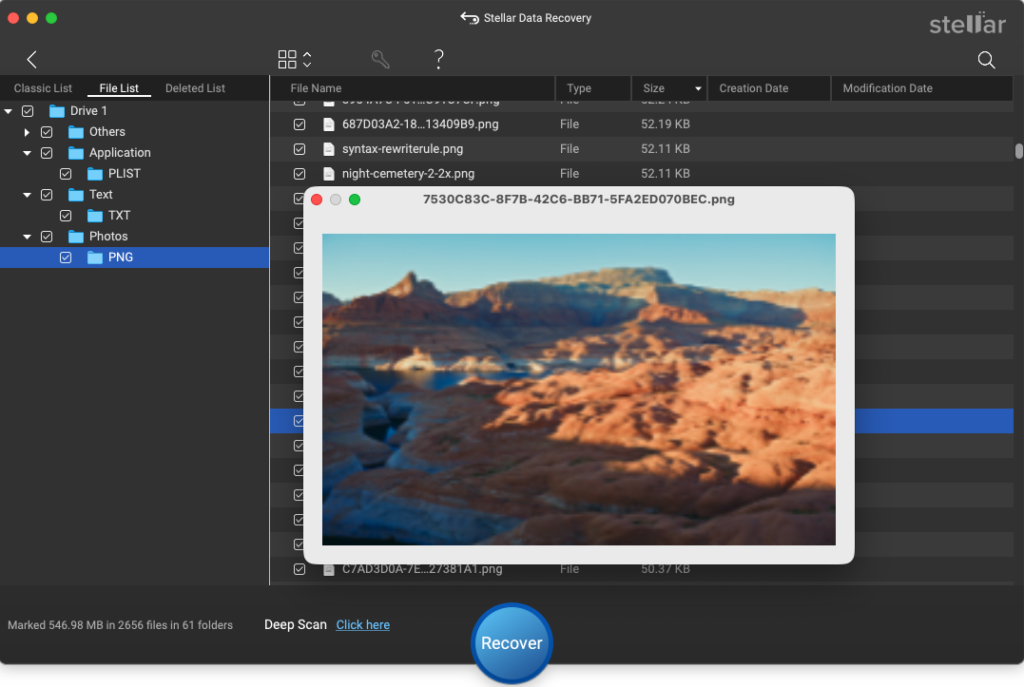
- Select the files you need, click Recover, and save them to a different drive.
A few things to expect from any recovery software. Recovered files sometimes come back without their original names or folders, so you may need to sort them. Big video files can also come back broken if they were stored in scattered pieces across the drive. That’s why the preview step matters.
5. Repair the Drive with Disk Utility
If your drive keeps disconnecting, won’t open folders, or throws errors when a game loads, its file system may be damaged. Disk Utility comes with every Mac, and it has a tool called First Aid that can find and fix these errors.
Only run it after you’ve saved your important files with recovery software or the steps above, or if nothing on the drive is irreplaceable. First Aid makes changes to the drive, and that can make later recovery harder.
- Connect the external drive to your Mac.
- Open Disk Utility.
- Click View > Show All Devices.
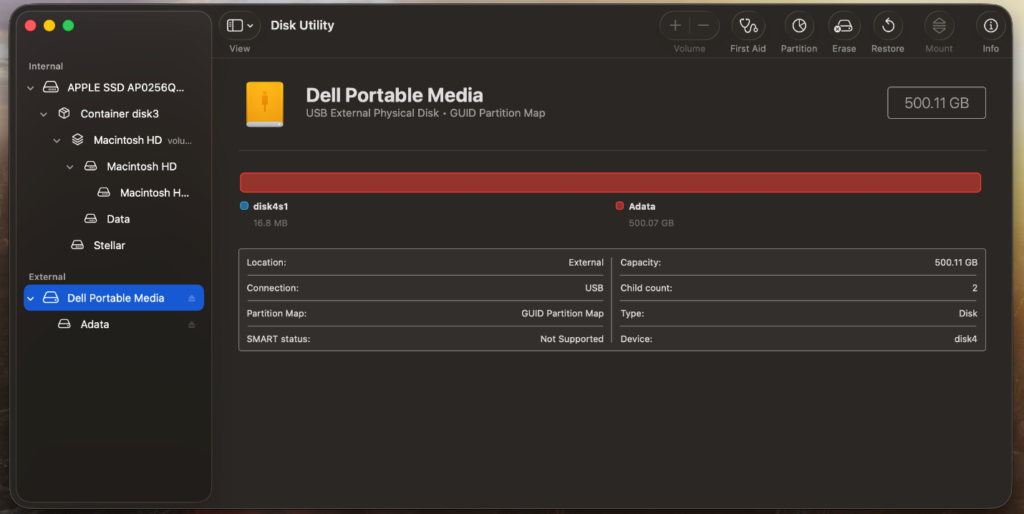
- Select your external drive in the sidebar.
- Click First Aid in the toolbar, then click Run.
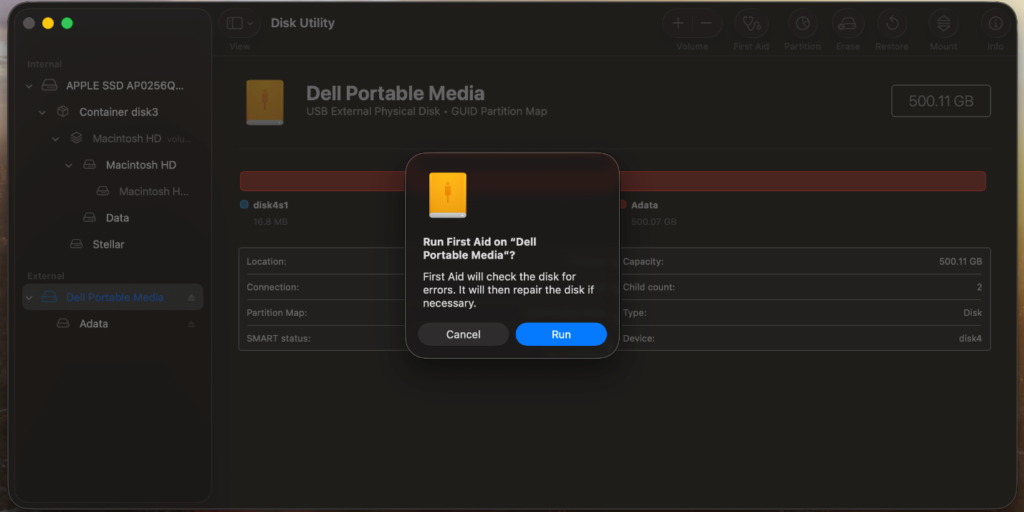
- When it’s done, click Done.
6. Contact a Professional Recovery Service
If even Mac data recovery software can’t find your files, or the drive is physically damaged, it’s time to call in the experts. Recovery software can only read what the drive can still hand over. It can’t fix broken hardware. Signs of physical damage include clicking or grinding sounds, a drive that won’t power on, or one that doesn’t show up in Disk Utility at all. A professional lab like Stellar Data Recovery Lab-Services can help here. Labs like this use Class 100 clean rooms and special tools to repair drives and pull data off damaged hardware.
- Stop trying to use the drive, and don’t open it yourself. Both can make the damage worse.
- Look up trusted data recovery companies, read their reviews, and contact them.
- If they tell you to, power off the drive and send it to the lab, or take it to a local service.
- The lab will check the drive and give you a price.
- Their team works on the drive in a dust-free room, repairs what it can, and copies your data onto another disk.
These labs can often save data from badly damaged drives, like an SSD whose main chip has failed or a hard drive with scratched disks inside. But success isn’t guaranteed, and it can cost hundreds or even thousands of dollars. That’s not worth it for a Steam library you can download again. It might be worth it for years of stream footage, a game or mod you’ve been building, or family photos stored on the same drive.
How to Stop This from Happening Again
The best recovery is the one you never need. These habits will protect you from most of the problems in this guide.
- Back up your gaming drive with Time Machine. Take it off the Exclude list, then add only the game install folders you can re-download. That keeps the backup small while still protecting your saves, clips, worlds, and mods.
- Use the 3-2-1 rule for anything you can’t replace. That means three copies, on two different kinds of storage, with one copy somewhere else, like the cloud.
- Turn on cloud saves for every game that has them. Don’t assume they’re on. Check.
- Test your backups now and then by restoring one file. A backup you’ve never tested is just a guess.
- Always eject the drive before you unplug it. Right-click it in Finder and choose Eject. Never pull the cable during a download, update, or recording. This matters even more if the drive uses exFAT so you can share it with a Windows PC. exFAT doesn’t have the built-in safety net that helps other formats survive a sudden unplug.
- Watch for warning signs. Slower load times, stutter in games, random disconnects, files that won’t open, or a drive that keeps vanishing from Finder can all mean it’s starting to fail. Back it up the moment you notice.
- Keep the drive cool. Don’t leave it next to a hot laptop vent or in a hot car.
Wrapping Up
Losing files from your gaming drive feels awful, but it’s rarely game over. First, work out what you really need back, since games can always be downloaded again. Then go through the six methods in order: the Trash, Time Machine, cloud saves and storage, Mac data recovery software, Disk Utility, and finally a professional lab if the drive is physically damaged.
Whatever you do, stop using the drive the moment something looks wrong. Your files are usually still there. Your job is to get them out before anything writes over them. Once they’re safe, set up a backup, so next time it’s a small annoyance instead of a lost save.



How to Recover Lost Game Files from an External Drive on Mac

Mystery Anime You’ll Regret Starting at Midnight | Part 2

ARC Raiders Frozen Trail Guide: How to Board and Clear the Frigate

Rockstar Games Integrates Advanced Ray Tracing for GTA VI

How to Update Outdated Graphics Drivers for Better Gaming Performance and Higher FPS

The Most Popular Car Game Isn’t Where Players Stay Longest

Canada’s Gaming Audience Is Bigger Than the Old Stereotype

Mystery Anime You’ll Regret Starting at Midnight | Part 1

Anime You’ll Be Glad You Added to Your Fall Watchlist (Part 2) 🍂

WoW Forever Leveling: What Is New on the Road from 1 to 60

MM2 weapon rarity tiers explained for traders

Why Game Clips Stall on Instagram Reels

One Piece Is Everywhere Right Now – and It’s Exposing a Problem With How Gaming Teaches Players to Gamble

Blox Fruits Physical vs Permanent Fruits: What’s the Difference?

What to Check Before Buying FC 27 Coins Online

Can You Stream Kick on Xbox: Complete Guide for Xbox Users
-
 Anime3 weeks ago
Anime You’ll Be Glad You Added to Your Fall Watchlist (Part 2) 🍂
-
 Features2 weeks ago
WoW Forever Leveling: What Is New on the Road from 1 to 60
-
 Esports2 weeks ago
MM2 weapon rarity tiers explained for traders
-
 Social Media4 weeks ago
Why Game Clips Stall on Instagram Reels
-
 Features4 weeks ago
One Piece Is Everywhere Right Now – and It’s Exposing a Problem With How Gaming Teaches Players to Gamble
-
 Features4 weeks ago
Blox Fruits Physical vs Permanent Fruits: What’s the Difference?
-
 Features4 weeks ago
What to Check Before Buying FC 27 Coins Online
-
 Social Media4 weeks ago
Can You Stream Kick on Xbox: Complete Guide for Xbox Users
-

 Features4 weeks ago
Why Side Activities Make Open Worlds Feel More Alive
-

 Anime4 weeks ago
Pokémon Announces New Movie With a New Hero and Mimikyu
-
 Features1 week ago
Canada’s Gaming Audience Is Bigger Than the Old Stereotype
-

 Esports4 weeks ago
Double-Sentinel Defensive Holds Disrupt Fast Valorant Site Executes